
If you are using Windows 8 or Windows 8.1 operating system in your computer, you might be aware of the new Ribbon UI introduced in Windows Explorer. Actually Microsoft replaced the good ol' Command Bar (toolbar) in Windows 8/8.1 Explorer with Office 2013 style Ribbon.
Many Windows users welcomed this change, on the other hand many users were disappointed by this move. Using Command bar or classic toolbar was easier than using Ribbon in Windows Explorer and they found it a little bit difficult to click in different ribbon tabs to find their desired options.
Microsoft didn't provide any built-in option to disable Ribbon in Windows Explorer. But there are a few ways to get rid of the Ribbon and bring old toolbar back in Windows 8/8.1 Explorer.
We have shared many tutorials in past to remove Ribbon from Windows 8/8.1 Explorer and today in this article we are going to put them together for your convenience.
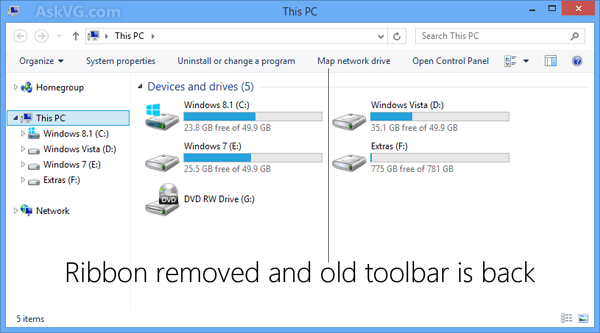
All these tricks work perfectly in Windows 8 and Windows 8.1. We have tested them in many Windows 8/8.1 computers and didn't face any problem.
So if you also want to remove Windows 8/8.1 Explorer Ribbon and want to enable the old Command Bar, follow any of these simple methods:
METHOD 1: Use Windows Explorer in Full Screen Mode
If you don't want to use any 3rd party software and if you don't want to modify any system file, Registry, etc, then this is the easiest method for you to disable Ribbon in Windows 8/8.1 Explorer.
This method will not remove the Ribbon completely but you can use this trick to temporarily disable Ribbon and get old toolbar back in Windows Explorer.
You just need to press "F11" key whenever you want to get rid of Ribbon and it'll show Windows Explorer into Full Screen mode. Now you'll have access to old toolbar and Ribbon will no longer be visible in Windows Explorer.

Check out following tutorial for details:
METHOD 2: Disable Windows 8/8.1 Explorer Ribbon by Renaming DLL File
This is an easy option to permanently remove Ribbon from Windows 8/8.1 Explorer. You just need to rename a DLL file "UIRibbon.dll" and it'll completely remove Ribbon in Windows Explorer and will also restore Windows 7 style Command bar.
Check out following tutorial to get the details:
But this method has one drawback. If you rename the DLL file, you'll not be able to use Paint and Wordpad programs in Windows. Since both these programs use Ribbon UI, they crash as soon as you launch them.
METHOD 3: Remove Windows 8/8.1 Explorer Ribbon by Modifying DLL File
If you use Paint and Wordpad apps and don't want to use above mentioned method, then you can disable Windows 8/8.1 Explorer Ribbon by editing a DLL file ExplorerFrame.dll in Resource Hacker.
You just need to edit the file and remove a key section from it. It'll permanently remove Ribbon from Windows 8/8.1 Explorer and will have no side-effects.
You can learn more about this method at following link:
METHOD 4: Get Rid of Windows 8/8.1 Explorer Ribbon Using Freeware
If you are not familiar with modifying system files, you can take help of a free software "OldNewExplorer" which can remove Ribbon from Windows 8/8.1 Explorer and can also bring many other Windows 7 style classic features back in Windows Explorer such as classical drive grouping, Details pane at bottom, etc.

You can download the software using following link:
METHOD 5: Convert Built-in Quick Access Toolbar into Classic Toolbar
If you don't want to remove Ribbon but want to have a Windows XP style classic toolbar in Windows 8/8.1 Explorer, then you can modify built-in Quick Access Toolbar in Windows Explorer to make it look and work like classic toolbar.

Check out following exclusive tutorial to learn more about this method:
====================================================
That's all for now. If you know about any other working method to remove Ribbon from Windows 8/8.1 Explorer, feel free to share it with us. If you face any problem while using any of the above mentioned methods, please post about it in your comment. Also don't forget to share your feedback...

